> ## Documentation Index
> Fetch the complete documentation index at: https://docs.simplifine.com/llms.txt
> Use this file to discover all available pages before exploring further.
# Getting Started on Simplifine
> Navigating Simplifine Interface, Workspace and Capabilities
# What is Simplifine?
Simplifine is an AI-powered research workspace designed to simplify and streamline research workflows. It integrates tools for reading, note-taking, data analysis, and visualization, helping researchers efficiently manage and analyze complex information. Simplifine enhances productivity by combining advanced AI capabilities with user-friendly design, ensuring a smooth, cohesive research experience.
# Simplifine Workspace
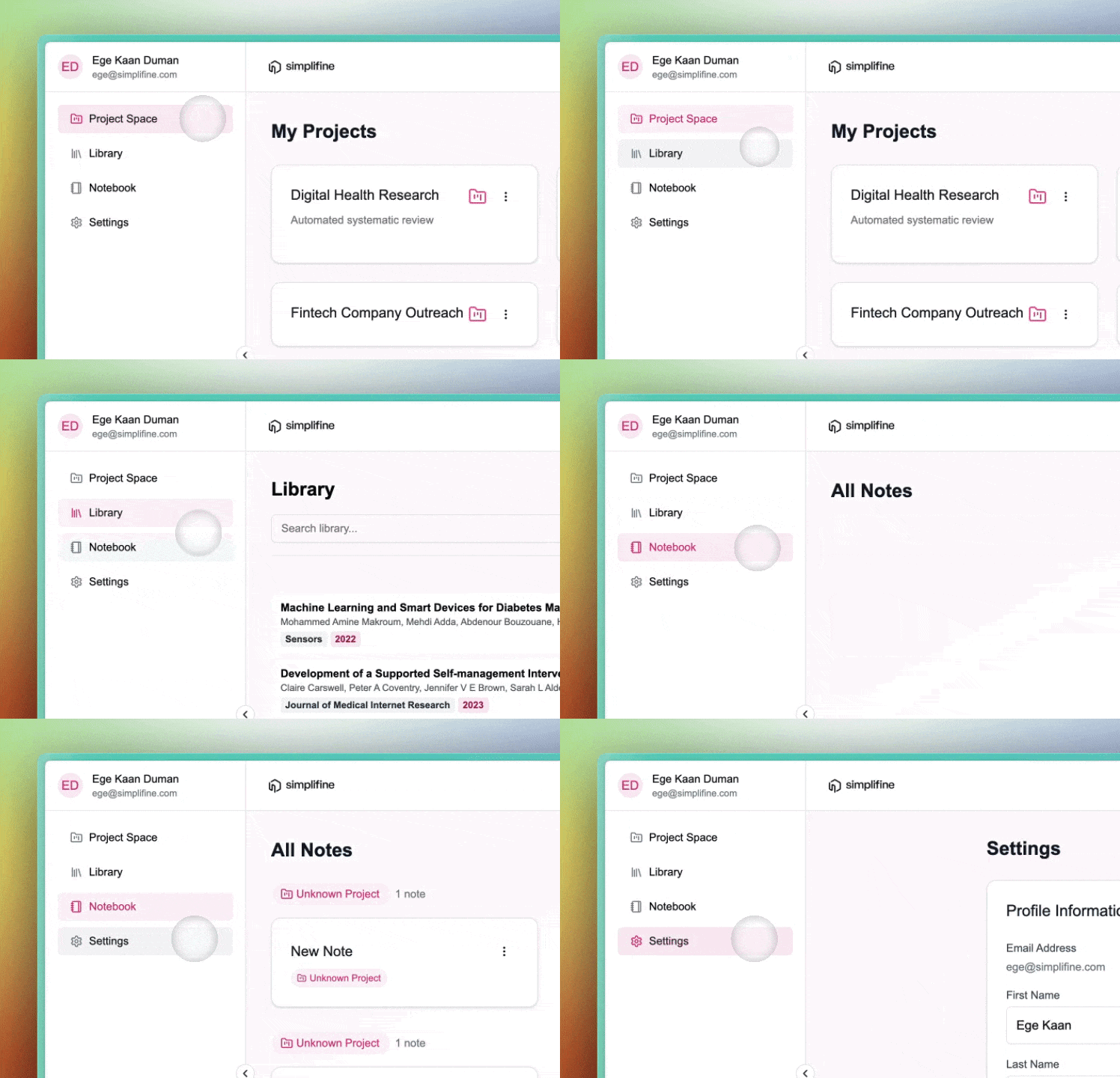
The Simplifine interface is designed for smooth navigation, enabling you to manage files, collaborate with AI agents, and organize your notes efficiently. **Workspace** is the interface that you see first when you log in. It is composed of four primary tabs, accessible through **Sidebar.**
## Sidebar
**Sidebar** is your primary navigation hub, providing access to **Project Space**, **Library**, **Notebook**, and **Settings**. Use it to switch between sections effortlessly and maintain an organized workflow. Using the Sidebar, you can also join our community on [Discord](https://discord.com/invite/vvJ6A7MrMv) and [Slack](https://simplifineusers.slack.com/ssb/redirect), and quickly send just your feedback, bug reports, and feature requests using the "**Feedback**" button. We value our users and take all submissions very seriously.
 ## Project Space
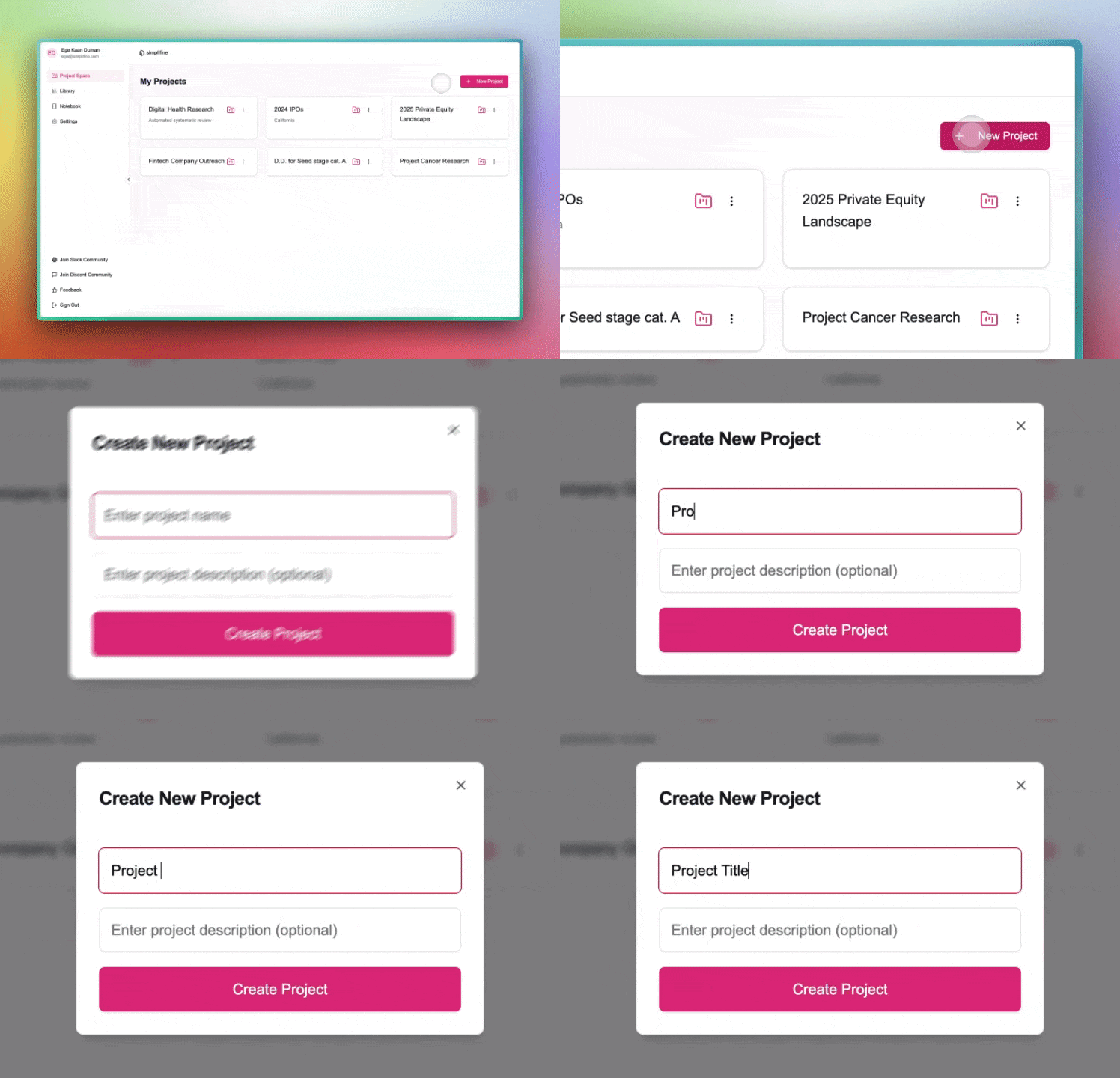
**Project Space** is where you manage your Projects, acting as dedicated workspaces where all files, notes, and resources for each research endeavor are housed. Here you can create, edit, delete, and open your Projects.
### How to Create a Project on Simplifine?
To create a Project for the first time, click on the circular "**(+)"** button at the center of the screen. Then name your Project and, optionally, add your Project details in the window that pops up.
To create a Project after your first one, click on "**Create Project**" button at the top right corner of Project Space. Then name your Project and, optionally, add your Project details in the window that pops up.
## Project Space
**Project Space** is where you manage your Projects, acting as dedicated workspaces where all files, notes, and resources for each research endeavor are housed. Here you can create, edit, delete, and open your Projects.
### How to Create a Project on Simplifine?
To create a Project for the first time, click on the circular "**(+)"** button at the center of the screen. Then name your Project and, optionally, add your Project details in the window that pops up.
To create a Project after your first one, click on "**Create Project**" button at the top right corner of Project Space. Then name your Project and, optionally, add your Project details in the window that pops up.
 ## Library
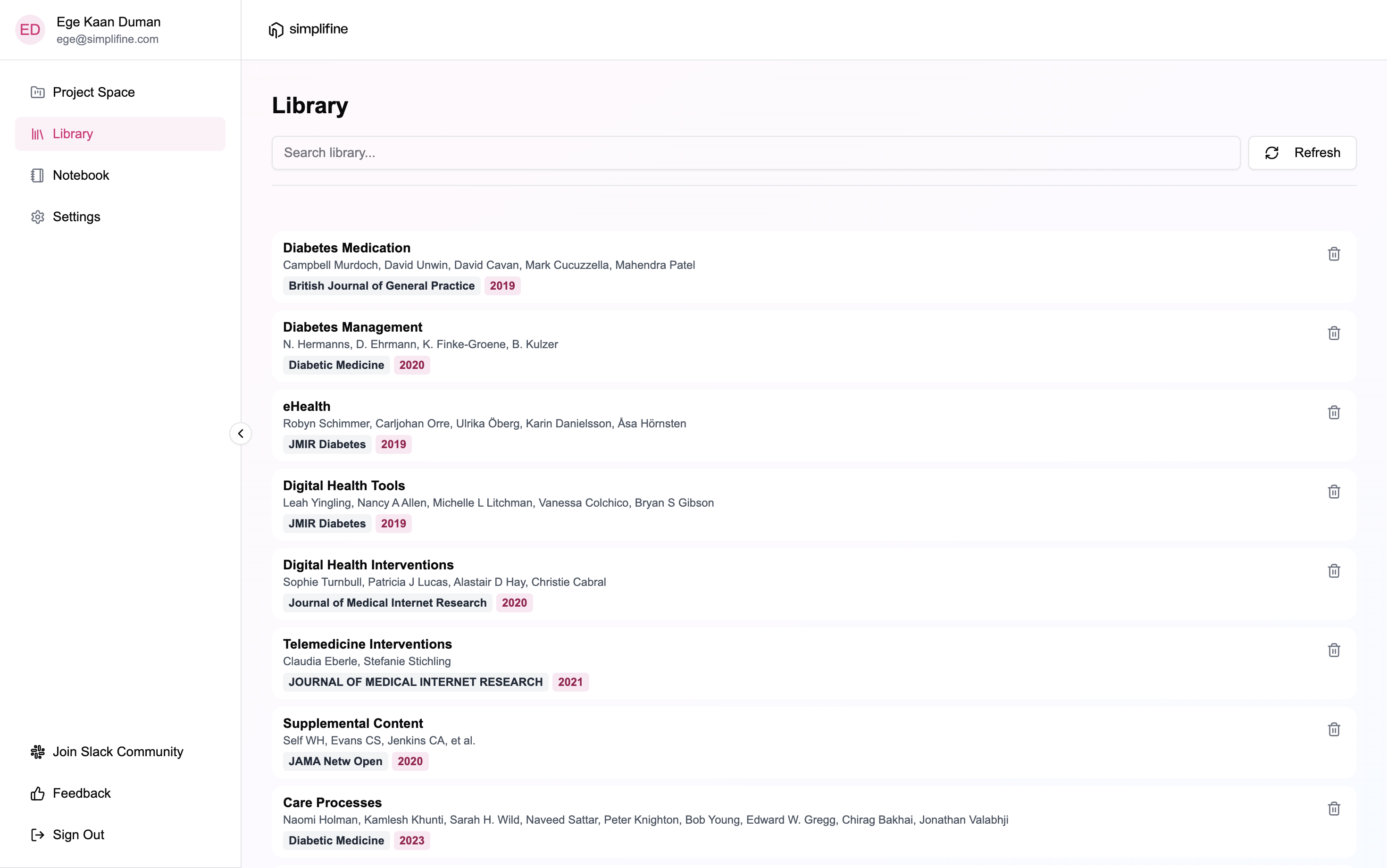
Your documents are kept in your **Library**. Supporting various file types, including PDFs and CSVs in the Free Plan, the Library consolidates diverse data sources in one place. Here you can upload documents via file selection or drag-and-drop, tag files to categorize them for quick retrieval and analysis, delete files to streamline your workspace, organize files into folders, and add descriptions. To view and annotate your documents outside a Project, you can also use your Library and click on the file you want to open.
## Library
Your documents are kept in your **Library**. Supporting various file types, including PDFs and CSVs in the Free Plan, the Library consolidates diverse data sources in one place. Here you can upload documents via file selection or drag-and-drop, tag files to categorize them for quick retrieval and analysis, delete files to streamline your workspace, organize files into folders, and add descriptions. To view and annotate your documents outside a Project, you can also use your Library and click on the file you want to open.
 ## Notebook
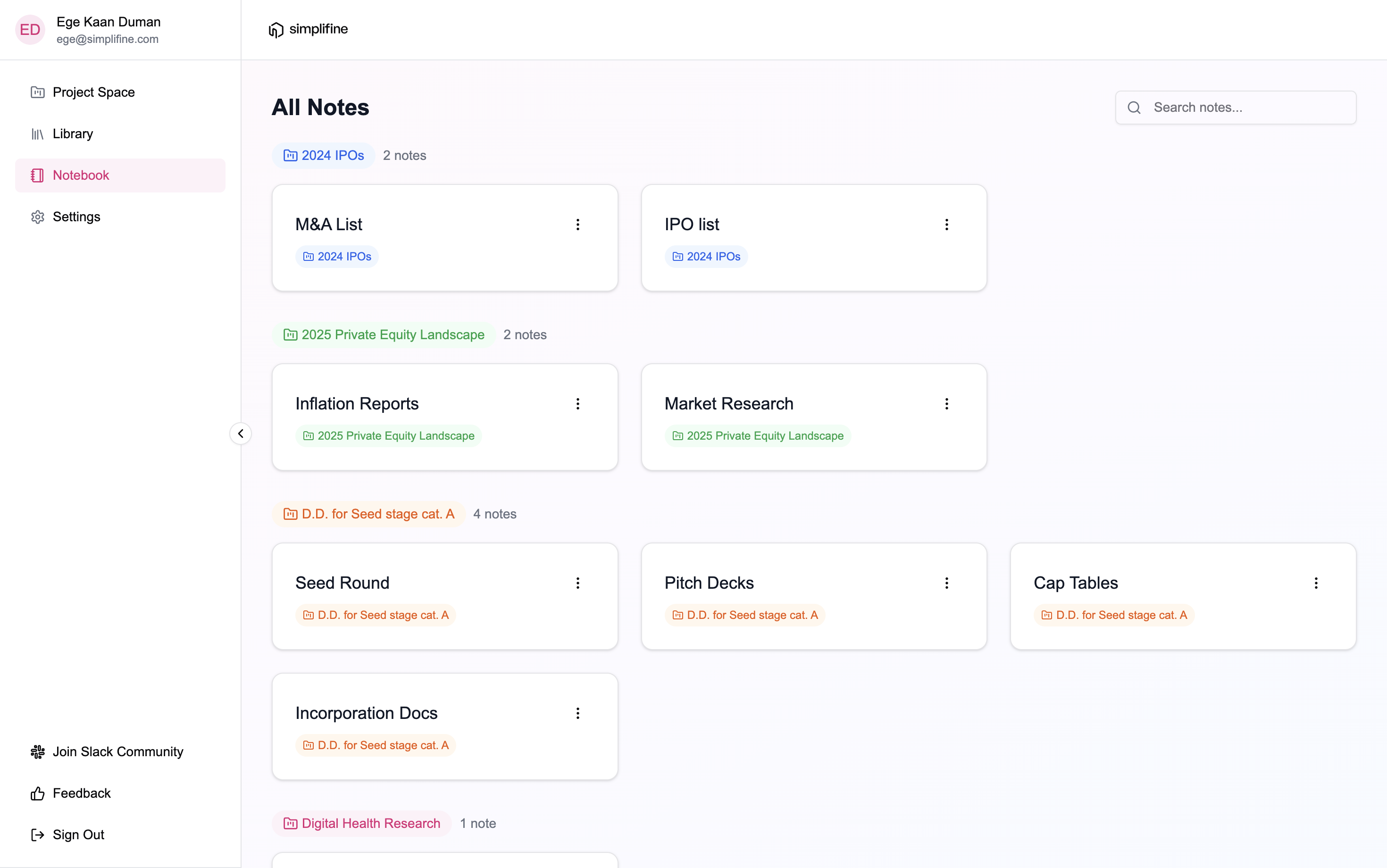
**Notebook** works like your **Library,** but instead of the files you upload or save on Simplifine, it is for the ones you create. So, Notebook view allows you to see all your Notes across all Projects. To view and edit your documents outside a Project, you can open your Notebook and can click on the file you want to access.
## Notebook
**Notebook** works like your **Library,** but instead of the files you upload or save on Simplifine, it is for the ones you create. So, Notebook view allows you to see all your Notes across all Projects. To view and edit your documents outside a Project, you can open your Notebook and can click on the file you want to access.
 ## Settings
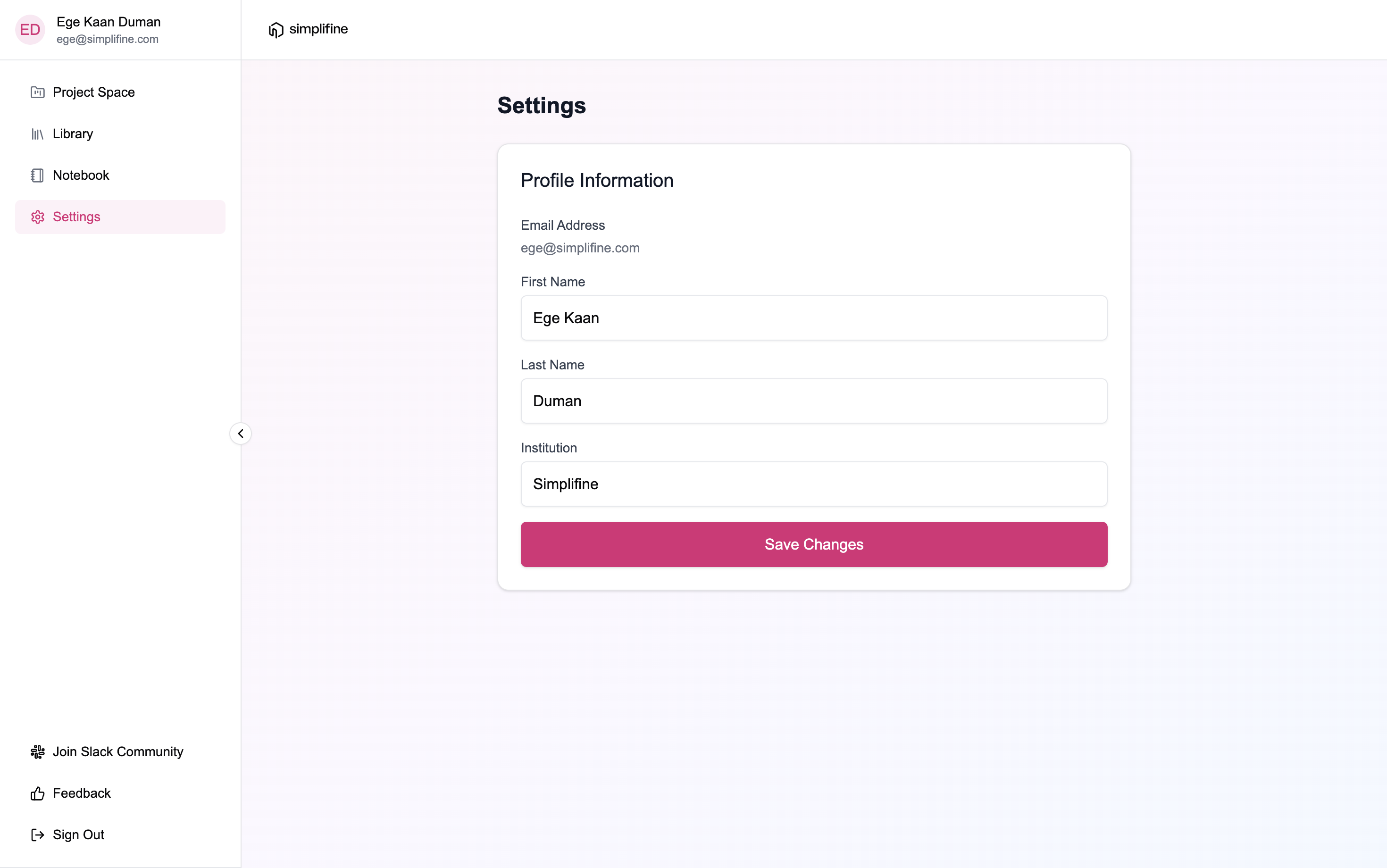
Using the **Settings** page, you can update your account information.
## Settings
Using the **Settings** page, you can update your account information.